8 Ways to Personalize Windows 11
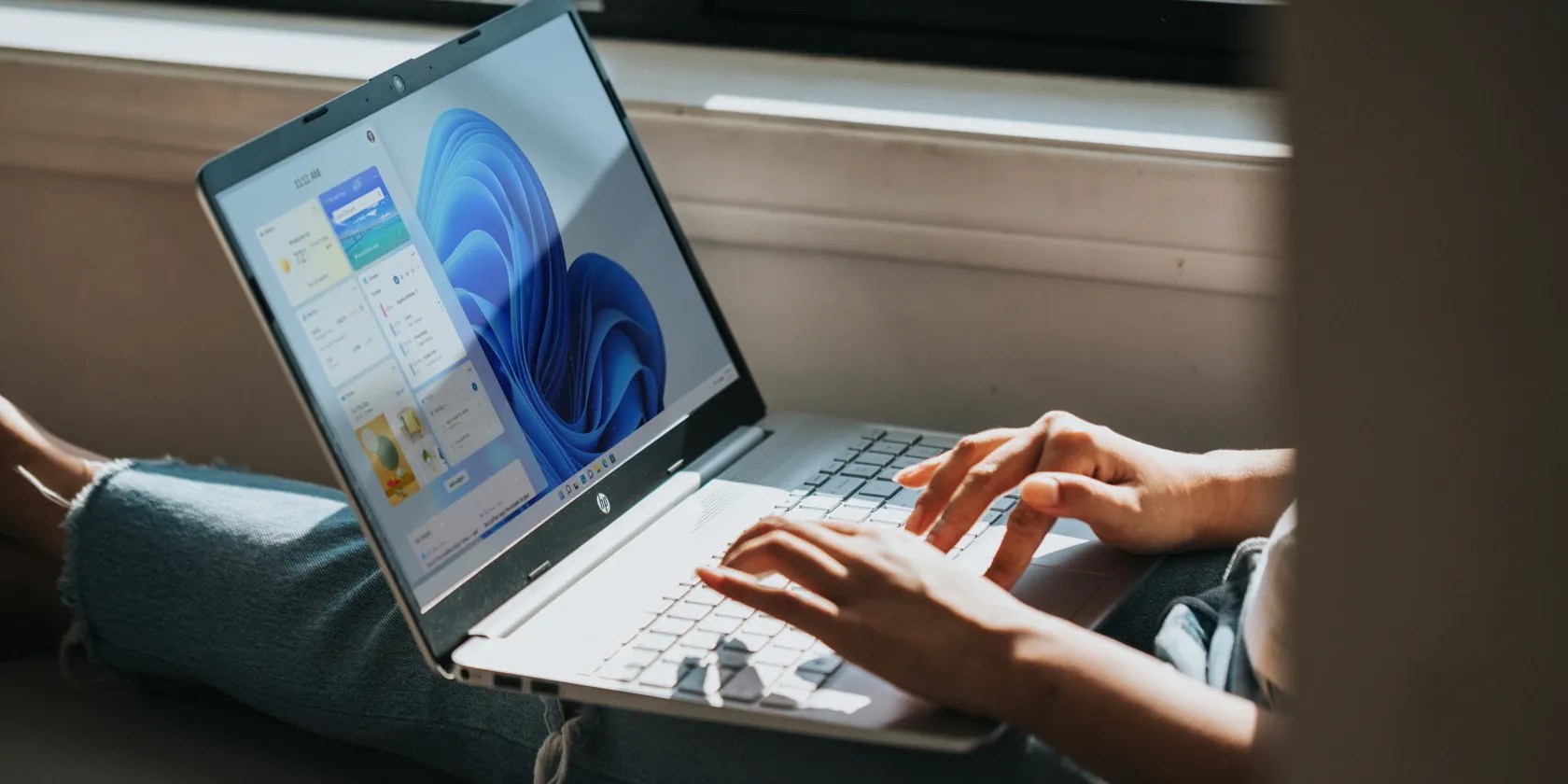
Desktop personalization is such an important facet of tech life. A personalized OS helps you stand out, and create a comfortable work and play environment. Consequently, this article covers a host of ways you can customize how Windows 11 looks when it boots up.
1. Custom Wallpaper
The home screen is the first thing you see after unlocking your system. A great way to personalize your Windows 11 is to set your home screen background to a nice picture you like. It could be something as simple as a photo of a loved one, or a beloved franchise. You can even go as far as setting GIFs and short videos as your desktop background.
To do this, selectStart, click on theSettingsicon and go to thePersonalizationtab.

On this tab, you should see aPersonalize your backgroundtab below. Ensure that thePersonalize your backgroundtab is set toPicture,and you should see a selection of preinstalled high-resolution images it’s possible to choose from. If none of those is to your liking, you can import a downloaded image by clicking onBrowse photos.
2. Windows Themes
Windows 11 is an operating system that lets you personalize much more than just the desktop background. The Windows Themes feature lets you synchronize your customizations, eliminating the need to change each feature individually. You can save a desktop wallpaper, lock screen wallpaper, app, window color, and much more under the same theme.
To do this, open your WindowsSettings, selectPersonalization, and navigate to theThemesub-menu.

You can select from a collection of pre-created themes that do a good job of changing the overall feel of your Windows 11. You can also create a custom theme by changing each feature manually and saving it by clicking theSavebutton.
3. A Slideshow for a Desktop Background
Having a single picture as your desktop background can be tiresome. Thankfully, Windows 11 has a feature that lets you turn your desktop background into a slideshow. This is a great way to spice up your desktop and have it look different from one moment to the next.
To do this, open your WindowsSettingsand open thePersonalizationmenu. Navigate to theBackgroundsub-menu and select theSlideshowoption.

Once you’ve selected this option, click on theBrowsebutton. This will open aFile Managerwindow from which you can select a folder containing your favorite images for the slideshow. You can set the duration between image swaps and even set it to shuffle the picture order to keep things interesting. A slideshow also works well in a custom theme.
4. Custom Fonts
Another way to enhance the look of your Windows 11 desktop is to change the text font. There are hundreds of unique fonts out there. it’s possible to use these two methods to download and install fonts on Windows 11. Font folders usually come compressed.
The first methofile’s contentsg the contents of the file and double-clicking on the font file.

Doing so will open a window that displays a preview of the font. ClickInstallto add the font to your system.
The second method of installing fonts on Windows 11 is to drag and drop the fonts file into the provided box in theFontssub-menu under thePersonalizationmenu. The font will be automatically installed on your computer.
You can change your system font by selecting from the available fonts in the list provided. It is also possible to take this a step further andchange the color of highlighted and non-highlighted text in Windows 11.
5. Customization Apps
Another great way to personalize Windows 11 is by using some ofthe best Windows customization apps. A good example of a customization app isLively Wallpaper. This free app on the Windows Store allows you to set GIFs, custom images, and even web pages as your desktop background.
Lively has a few stock wallpapers for you to choose from, but you can easily add your own to its expansive library.
6. Add Apps to the Taskbar
The taskbar is a handy feature that gives you quick access to a short list of applications. Unlike its predecessors, the Windows 11 taskbar is centered, but it is still fully customizable. You can add and remove your most used applications from the taskbar, giving you quick and convenient access to them when you wish.
To pin an application to the taskbar, launch it from yourStartMenu and right-click on the icon on your taskbar.
A small drop-down will appear with the option toPin to taskbar. Once you select it, that application icon will remain on your taskbar even after you close it.
Alternatively, the process is simple if you want to remove an unwanted application from your taskbar. Right-click on the unwanted application on your taskbar.On the menu that pops up, selectUnpin from taskbar.The app should disappear from your taskbar immediately after you do this.
You can also select which preinstalled system applications show up on the taskbar by visiting the taskbar menu in your settings. To do this, open your WindowsSettingsand navigate to thePersonalizationtab. Next, click on the taskbar sub-menu to open up the settings.
7. Customize the Start Menu
TheStartmenu is a more detailed list of the available applications and files on your computer. You can pin your favorite applications and folders to theStartmenu, so they always show whenever you click theStartbutton.
Click on yourStartbutton and scroll to your preferred application. After this, right-click the application and selectPin to Start.
Note that you can only pin a limited number of applications to your start menu, so choose wisely. You can alsocustomize the Start menu in windows 11in a few other ways, such as using external applications to change the look.
8. Customize Your System Sounds and Change Your Mouse Pointer
Another way to make your Windows 11 stand out is to change the system sounds and use a customized mouse pointer. The triangular pointer is a classic, but Windows 11 allows you to get creative with what you use to select your applications.
To access this feature, open your systemSettingsand thePersonalizationtab. Next, navigate toThemes,and you will see the option to modify your mouse cursor and system sounds.
When you click on theMouse Cursoroption, a window will pop up, allowing you to browse through a list of predefined cursors that you can select from. Of course, you could go as far as creating your cursor and importing in, but that is a bit more advanced.
You can change your system alert for different tasks from the systemSoundsmenu. For example, you could customize the charging sound, the device tethering sound, and more. In addition, your custom selections can be saved as a theme, allowing you to freely switch between different sounds and cursors at the click of a button.
Simple Tweaks to Enhance Your Windows 11 Experience
It all boils down to personal preference. Windows 11 allows users to personalize various aspects of their operating system, so they can feel much more comfortable using their computers. There are many more ways to customize your desktop, like changing your lock screen and screen timeout settings.
As such, Windows 11 enables its users to stand out and create a unique experience they can call their own.
Windows 11 sports a brand new UI, but if you feel it’s not to your liking, use these tools to make it truly yours again.
You can block out the constant surveillance and restore your privacy with a few quick changes.
If an AI can roast you, it can also prep you for emergencies.
Free AI tools are legitimately powerful; you just need to know how to stack them.
I gripped my chair the entire time—and then kept thinking about it when the screen turned off.
Revolutionize your driving experience with these game-changing CarPlay additions.
