From saving and navigating between waypoints to monitoring elevation and backtracking when you’re lost, the Compass app on your Apple Watch can do much more than just point you north. Learn how to customize this built-in watchOS app and take full advantage of its valuable features for hikers, bikers, and other explorers.
Change the Compass View
The main view in the Compass app is a detailed compass face that shows the cardinal directions—North, South, East, and West—around the edge along with your bearing in the center. At the bottom, you’ll see your elevation.
You’ll also see Waypoints displayed as red dots around the compass. Waypoints are saved locations that you can add in the Compass app as well as places you’ve saved in Maps.

You can change the compass’s face by turning the Digital Crown.
Add and Browse Waypoints
To browse Waypoints, tap theinformation(i) button, then tapWaypoints. you may view Waypoints you’ve saved in the Compass app by tappingCompass Waypoints. Or you can scroll through guides you’ve created in Maps (on your Apple Watch and iPhone) by tapping the name of the guide. This handy feature is yet another reasonevery iPhone user should buy an Apple Watch.
Waypoints require watchOS 10, and the compass only shows locations within 50 miles.
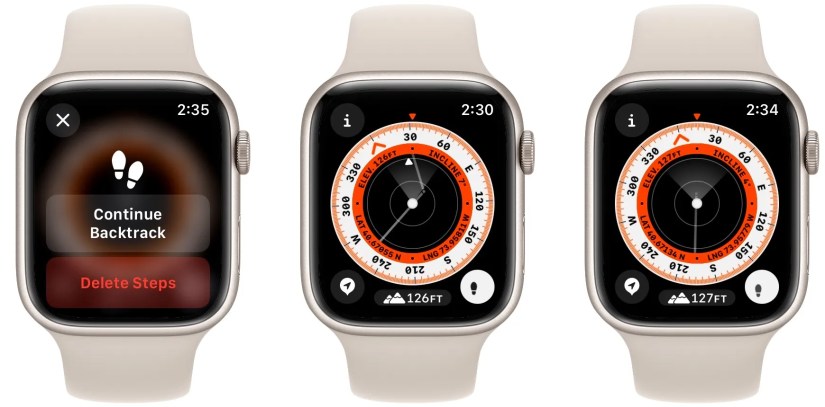
Use Backtrack to Retrace Steps
Backtrack lets you track your routefrom a starting location and retrace your steps to return to it, even without an internet connection.
Start tracking your route using GPS by tapping thefootprintsbutton. Your watch will automatically save your route.
When you’re ready to return to where you started, tap thepausebutton, then chooseRetrace Steps. Follow the white arrow that appears on the compass face to indicate the correct direction.
Add a Bearing to Follow
If you simply want to add a bearing instead of setting a specific waypoint, tap theinformation(i) button and chooseBearing. Then, use the Digital Crown to set your desired bearing and tap thecheckmarkbutton.
Use Target Elevation Alerts
By tapping themountainicon that displays your elevation in the Compass app, you can tilt the compass face to show a 3D view of your waypoints.
If you’d like to set an alert for when you reach a specific elevation, tap theinformation(i) button, then tapSet Target Alert. Choose your desired elevation and tap thecheck markbutton to set the alert. You can cancel it later by tappingClear Alert.
Switch Between Magnetic and True North
Magnetic north is the default, but you can use true north instead by opening the Settings app on your Apple Watch and tappingCompass. Then, simply toggle onUse True North.
Explore Confidently With the Compass App on Apple Watch
The Compass app on watchOS continues to gain features, from saved Waypoints to elevation monitoring and alerts. By learning how to navigate with the Compass app, you’ll have a better idea of where you are, which way to go, and how to get back to where you started.
