How to Create a No-Code Webpage in Notion: A Step-by-Step Guide
If you need a simple, no-code webpage, Notion is the place to go. Not only is it one of the top note-taking and productivity software available, but you can also use those very same tools to create a landing page and let your customers or followers know where to find you.
And if you’ve yet to try it, it’s much like using a common word processor. Curious about how it works? Follow this step-by-step tutorial to create your very own no-code webpage in Notion.

Getting Started With Your No-Code Notion Webpage
To create your webpage document, go toNew pagein the bottom-left corner of your screen and selectEmpty page. Give your page a title that reflects what your webpage is about, for example, your business, product, or service name. You can return and change it later if you think of something different, but you want people to know they’re in the right place.
Adding a Cover Image to Your Notion Page
Cover images are an excellent way to make your webpage recognizable to your followers or customers. To add one:
Even if you don’t have a visual representing your business’s brand, you can pick something that matches your color scheme—or design something infree photo editing softwarelike Canva. If you find you don’t want an image at all, go back to the cover menu and click Remove in the top-right corner.
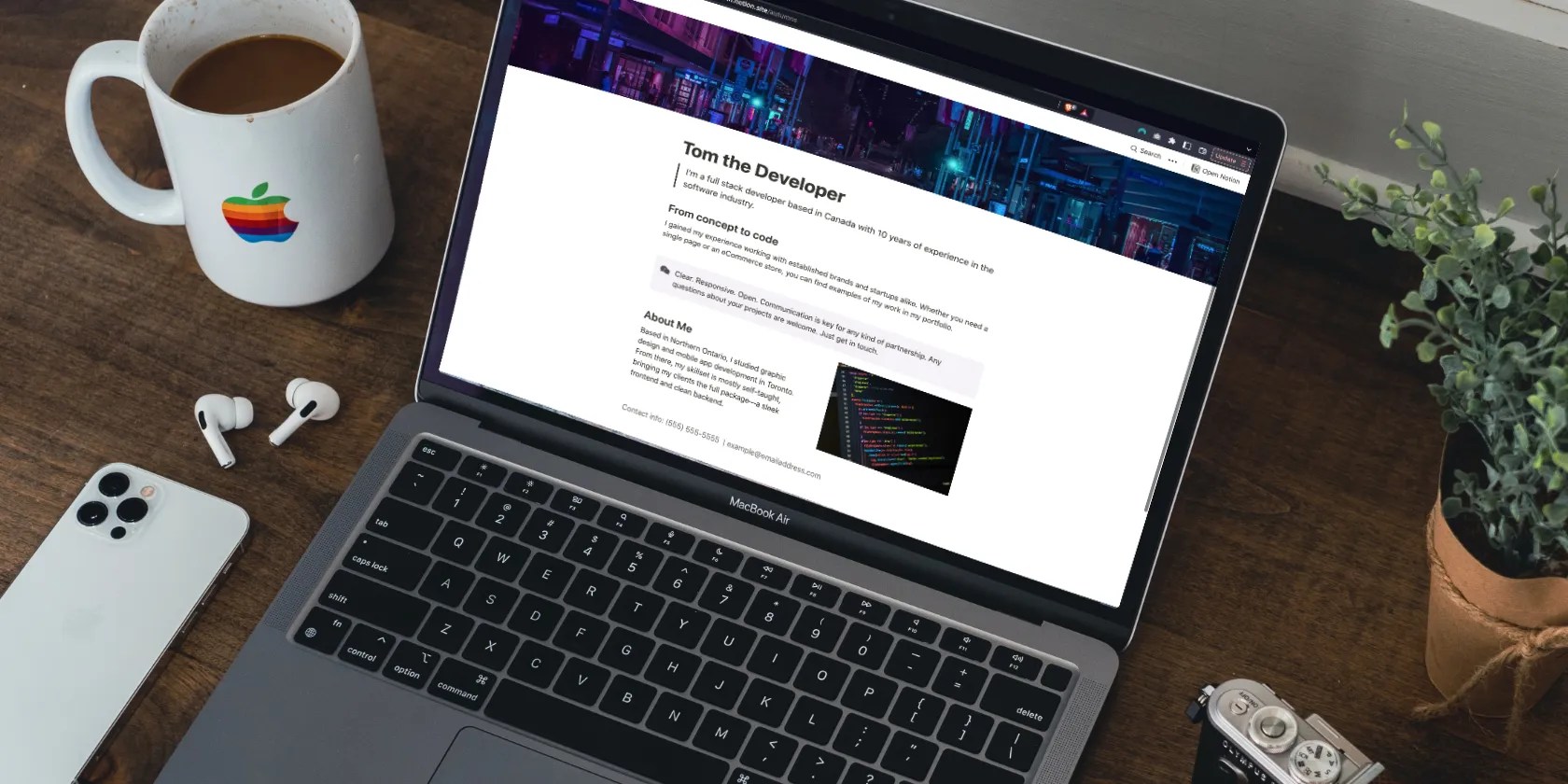
You can come back to this later if you’re stuck on what image to use.
Adding Headers and Text to Your Notion Page
When making a webpage, the temptation is often to cram as much information as possible into one place. But think about your own reading habits. If there’s too much information on one page, or you’re looking at walls of text, it’s more challenging to find the message.
The goal is to make your webpage skimmable and provide enough information that your followers or customers can take the next step. It also helps to organize that information under headers, so they can swiftly locate it. You can add emphasis to important text using colors, bolding, italics, andCalloutorQuoteblocks. Plus, you canchange your font in Notionif the default one doesn’t work for you.

With Notion, you can easily add text anywhere just by clicking anywhere on the page and typing. For headers, you can either use commands to change your block to a header before you type or highlight the text afterwards and use the formatting toolbar to make the swap.
For size, your options are headings 1, 2, or 3, H1 being the largest and H3 being the smallest. The size of your heading helps you show your webpage’s hierarchy. Since your main and most important title is H1, you’ll want to use H2 for titles and H3 for subtitles throughout, so you’re not competing with it.

Plus, if you have a Personal Pro account and decide to switch onSearch engine indexing, organizing information using headers and only using one H1 heading per page follows good SEO practices.
Adding Links to Your Notion Page
To add links to your text, highlight it and clickLinkin the formatting toolbar. To like to an email, type mailto: and then your address, so it’ll open your potential client’s composer and place it in for them. For example, mailto:example@makeuseof.com. Be sure to test it out and double-check you’ve spelled it correctly.
Some other links you may want to add are your social media pages, portfolio pages, or other useful places potential clients or followers can find you on the internet.

Adding Images and Video to Your Notion Page
Building a no-code webpage doesn’t mean it needs to be basic. Using commands, you could insert images and videos anywhere on your page.
Once your image or video is on your page, you can drag and drop it anywhere using the handle—six dots to the left of your block. You can also place it beside another block to create a column. To resize columns, hover your cursor over the block and use the guides on either side. Play around with your images and layout to see what you like.
Publishing Your No-Code Notion Webpage
Once your webpage is ready, launch it by going toSharein the top-right corner of your screen and switching onShare to web. Turn editing and commenting off, duplication too, if you don’t want someone using your website as a template. Now, you can use the link to share it with anyone you’d like.
Double-check your page for any you don’t want others to have access to, including links to your other Notion pages.
Suggestions for Additional Pages You Can Build in Notion
If you’re comfortable building no-code pages in Notion, some other pages you could consider adding are:
Ensure that each page you add serves a purpose, has a message, and contains relevant and up-to-date information. Less is more applies to more than just text and images when building a website.
Building a No-Code Webpage Doesn’t Need to Be Complicated
you could keep your Notion webpage as simple as you’d like. The goal is to share a message with your potential customers or followers about who you are and what you do. Keep it brief and organized to ensure they get the message.
And if you want to keep playing around with the layout and images, you may duplicate the page by right-clicking it in the sidebar and working within the copy, so you don’t lose your previous design.
If you’re looking to create an online resume and easily share it with anyone, here’s how you can do it with Notion.
I found my TV was always listening—so I shut it down.
Every squeak is your PC’s way of crying for help.
you could’t call this offline, Notion.
Freeing up vital memory on Windows only takes a moment, and your computer will feel much faster once you’re done.
Who asked for these upgrades?
