How to Fix GameLoop’s “Failed to Start the Emulator” Error in Windows 10 & 11
GameLoop (formerly known as Tencent Gaming Buddy) is among the best Android game emulators for Windows 10 and 11. Millions of players enjoy the best mobile games on their PCs with that software. Yet, some users can’t play Android games in GameLoop because of a “Failed to start the emulator” error.
Sign up forfree
Forgot your password?
Create an account
*Required: 8 chars, 1 capital letter, 1 number
By continuing, you agree to thePrivacy PolicyandTerms of Use.You also agree to receive our newsletters, you can opt-out any time.

1. Select the Multi-window Option in GameLoop
This potential solution for the “Failed to start the emulator” error is more of a workaround than a fix, but it’s worked for some players. GameLoop has a Multi-window option for opening a new window from which to launch a game. Try starting an affected game by selecting GameLoop’sMulti-windowoption like this:
2. Delete the Tencent Folder
Some GameLoop users have confirmed fixing the Tencent data folder resolves the “Failed to start the emulator” error. Before you do that, make sure GameLoop isn’t still running in the background by disabling its process in Task Manager if necessary. Then delete the Tencent folder as follows:
3. Terminate the Aow_exe.exe Process
Many GameLoop users have resolved the “Failed to start emulator” error by disabling an aow_exe.exe background process. Those users needed to utilize a third-party Process Hacker software to terminate that process instead of Task Manager. This is how you can terminate aow_exe.exe with Process Hacker:
4. Clear the Prefetch and Temp Folders
Corrupted data in the Prefetch and Temp folders can also cause GameLoop issues. Therefore, it’s recommended to clear the data in those folders in the following steps:
5. Update the Graphics Driver
An outdated graphics driver on your PC could be another potential cause for the “Failed to start” error. The graphical requirements of mobile games like PUBG Mobile and Call of Duty are comparable to their Windows counterparts. So, make sure your PC’s GPU (graphics processor unit) has the latest driver available. Our guide toupdating graphics drivers on Windowsincludes full guidelines for updating a GPU’s driver.
6. Select GameLoop’s Repair Now Option
GameLoop has aRepair Nowoption that has fixed the “Failed to start the emulator” error for some players. If that option worked for them, it could feasibly fix the same issue for you. You can select thatRepairoption in the following steps:
7. Reinstall the GameLoop Software
If you still need to fix the “Failed to start the emulator” error after applying the potential solutions above, try reinstalling the GameLoop software. This is how you can reinstall GameLoop in Windows.
Enjoy Your Android Games in Windows Again
The “Failed to start the emulator” error is a widely cited GameLoop issue many users have fixed with the confirmed solutions in this guide. So, one of them will probably resolve the “Failed to start the emulator” error on your Windows PC.
If, however, the issue persists, note that there are some good alternative Android emulators to GameLoop for Windows, such as BlueStacks. So, you can play your favorite Android games in one of the alternative emulators instead.
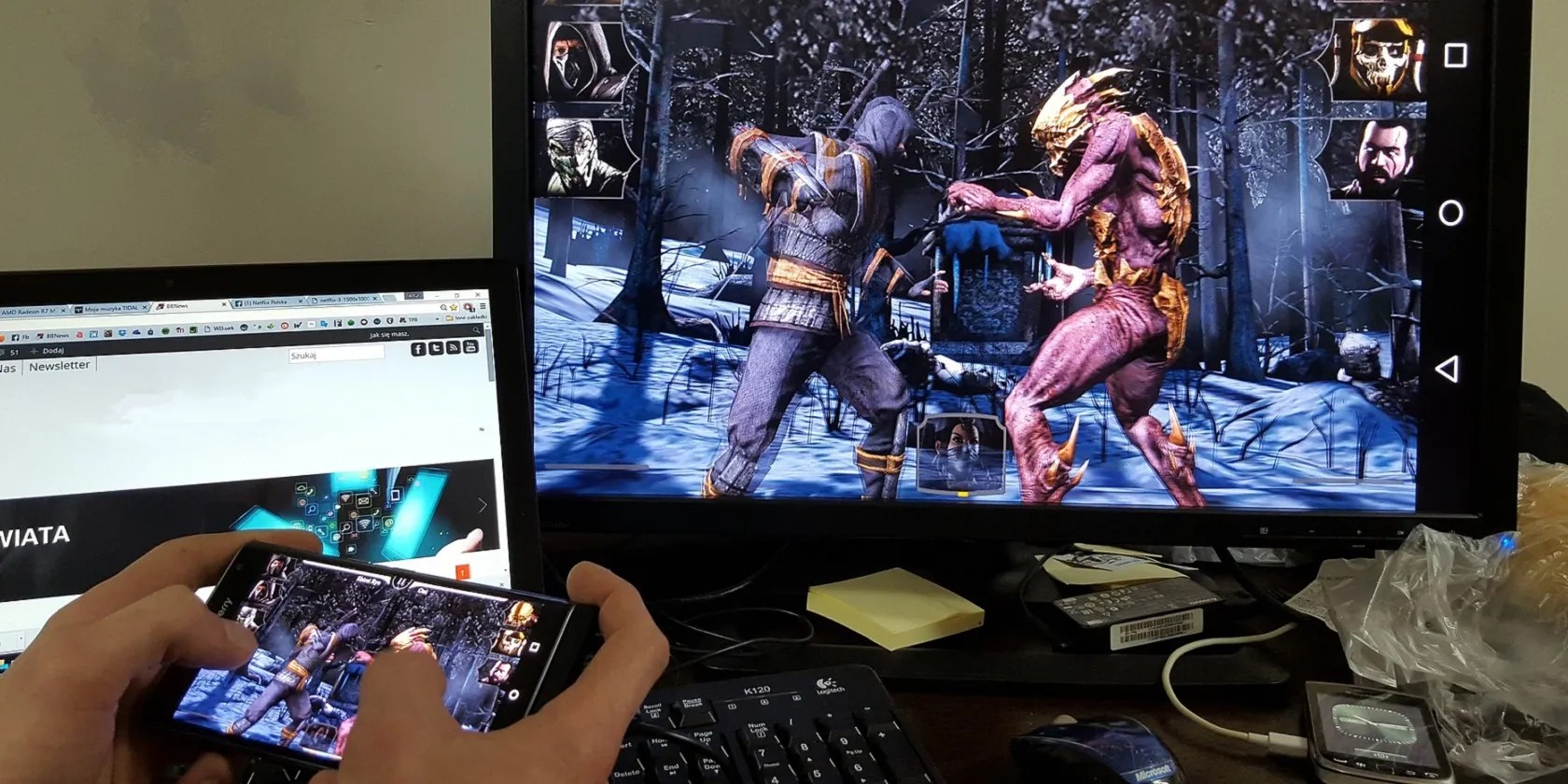
You have so many options if you want to play your favorite Android games on a computer.
You don’t need to fork out for expensive hardware to run an AI on your PC.

Taming data is easier than it looks.
Your iPhone forgets what you copy, but this shortcut makes it remember everything.

The fix was buried in one tiny toggle.
Turn these settings on, and your iPhone will be so much better than before.

