How to Fix the “A Device Which Does Not Exist Was Specified” Error in Windows 10 & 11
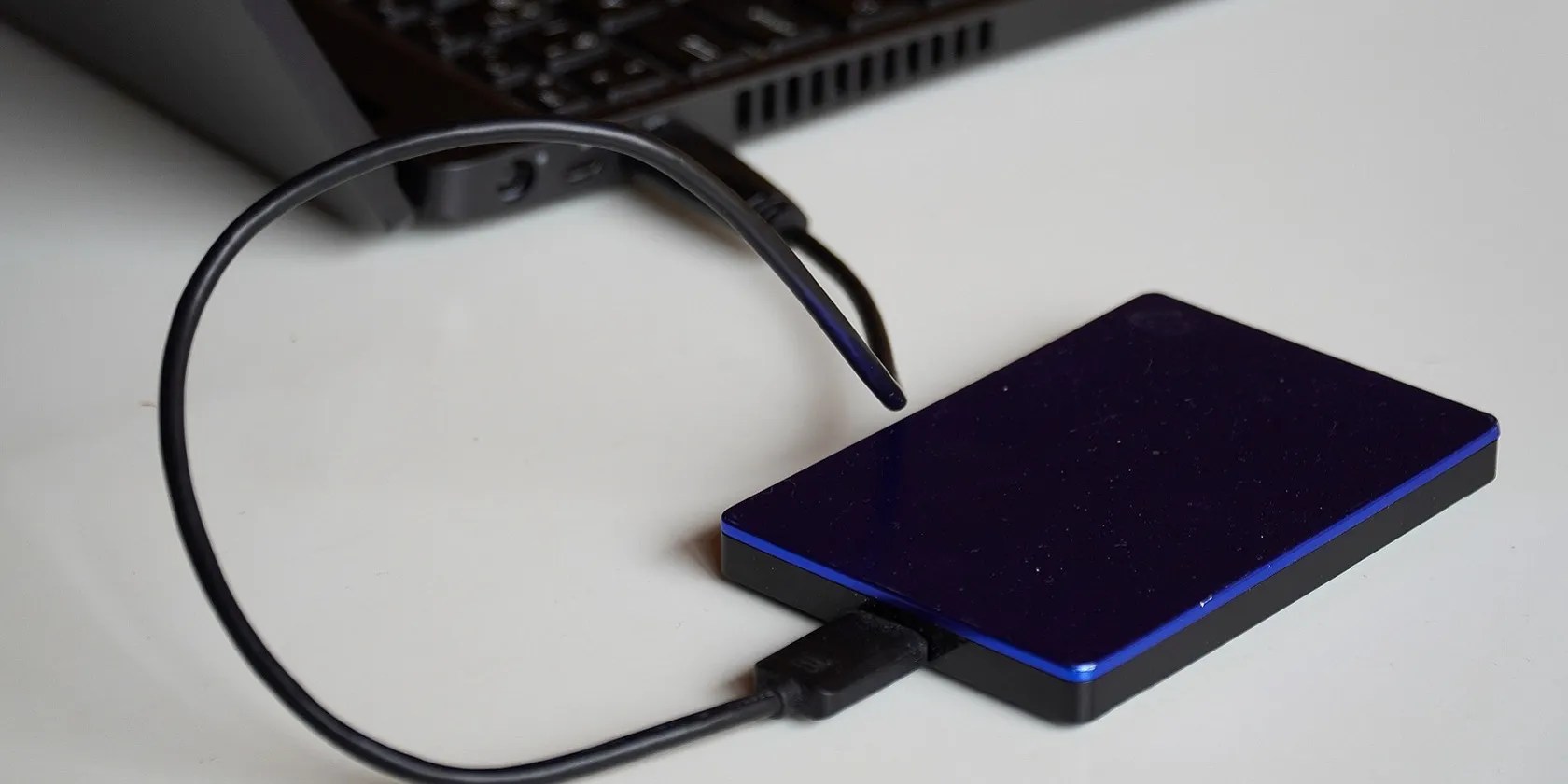
Many users partition their hard drives or utilize external storage devices with their PCs. However, such drives become inaccessible when the “A device which does not exist was specified” error arises. Users have reported seeing this strange error message when they try to open connected external storage devices or drive partitions inside Windows File Explorer.
That error is most unwelcome since it means users can’t open whatever drives it arises for. Consequently, they can’t access files on affected drives. This is how you can fix the “device which does not exist was specified” error in Windows 10 and 11.

1. Plug the Affected Device Into a Different USB Slot
If this error is affecting an external storage device, try reconnecting the USB drive. There might be an issue with the port you’ve connected the drive with. Plug the USB drive into a different port to see if the same error occurs.
If you need to resolve this error for an internal drive, check the drive’s internal connections. To do that, you’ll need to open the case for a desktop PC. Then make sure none of the drive’s connection cables are in any way loose.

2. Run the SFC Tool
Users have confirmed the System File Checker tool can resolve this drive error. That highlights system file corruption can cause this issue, which an SFC scan will likely resolve. Our guide torunning a System File Checker scantells you how to execute the SFC command in Windows.
3. Run a Check Disk Scan for the Drive
You might need to fix the “device which does not exist was specified” error because your drive has some bad sectors. Running a CHKDSK (Check Disk) scan command is a potential remedy for bad drive sectors. This is how you can run the Windows Check Disk tool from the Command Prompt:
You’ll need to replace X in the above command with the actual letter of the affected drive you need to scan. For example, the command for a drive labeled D would be:

4. Try Changing the Drive’s Letter
Changing the affected drive’s letter is a potential fix that users have confirmed to work. You can change the drive’s letter with the Disk Management tool like this:
5. Rescan a Drive
Disk Management includes aRescan Diskoption for troubleshooting drives. That option detects disk changes and updates drive info accordingly when selected. So, rescanning the disk is a viable troubleshooting method for resolving this “device which does not exist” error. This is how you can rescan a drive:
6. Select the Full Control Option for a Drive Location
The “device which does not exist” error can arise because of restricted drive permissions. In that scenario, users need to select aFull controlpermission option for their drives. These are the steps for selecting theFull controlpermission setting:
7. Reinstall the Affected Drive
If you need to fix this issue for an external storage device, try reinstalling the affected drive. Doing so will reinstall the drivers for the affected storage device. This is how you can reinstall the drive:
Insert the affected drive into one of your PC’s USB ports.

8. Update Your Motherboard’s Chipset Driver
It might be necessary for some users to update motherboard drivers to fix this issue. To do so manually, you’ll need the motherboard model and manufacturer details. You can check those details as follows:
Then open the download section of your motherboard manufacturer’s website. Select your motherboard model and download its latest chipset driver from there. You can install the new driver for your motherboard with the downloaded driver (setup.exe) package file.
The driver package might be included within a ZIP archive, which you’ll need to extract as outlined within this guide tounzipping files in Windows.
Access Your Drive Again on Windows
Those potential solutions will probably fix the “device which does not exist” drive error for most users. If they’re not enough, there could be an issue with your PC’s motherboard headers. In that case, consider taking your PC to a reputable repair service to resolve such an issue.
You can block out the constant surveillance and restore your privacy with a few quick changes.
The fix was buried in one tiny toggle.
Anyone with more than a passing interest in motorsports must see these films.
Don’t let someone else take over your phone number.
check that you don’t miss these movies and shows before Netflix removes them.
Every squeak is your PC’s way of crying for help.
