How to Install and Use a Theme From the Microsoft Store
Using the default Windows theme over a period of time can get painfully dull after a while. But if you’re a Windows user, you don’t have to stay stuck with old and boring theme settings. In fact, Microsoft has made it possible to install and use new themes, all with a few clicks.
In what follows, we will cover how it’s possible to install a theme from the Microsoft Store without any hiccups. So let’s jump right in.

How to Install a Theme on Windows PC
While the Windows Store was introduced back with Windows 8, themes only became officially available on the Windows Store with the Windows 10 Insider Preview Build 15007. Moreover, the build has since become an integral part of tweaking the appearance of your Windows. So here’s how you’re able to install a theme on Windows:
From here, you can select the theme you would like to use on your PC from now on. But for now, we are looking at how to get new themes for your Windows. So follow the steps below:
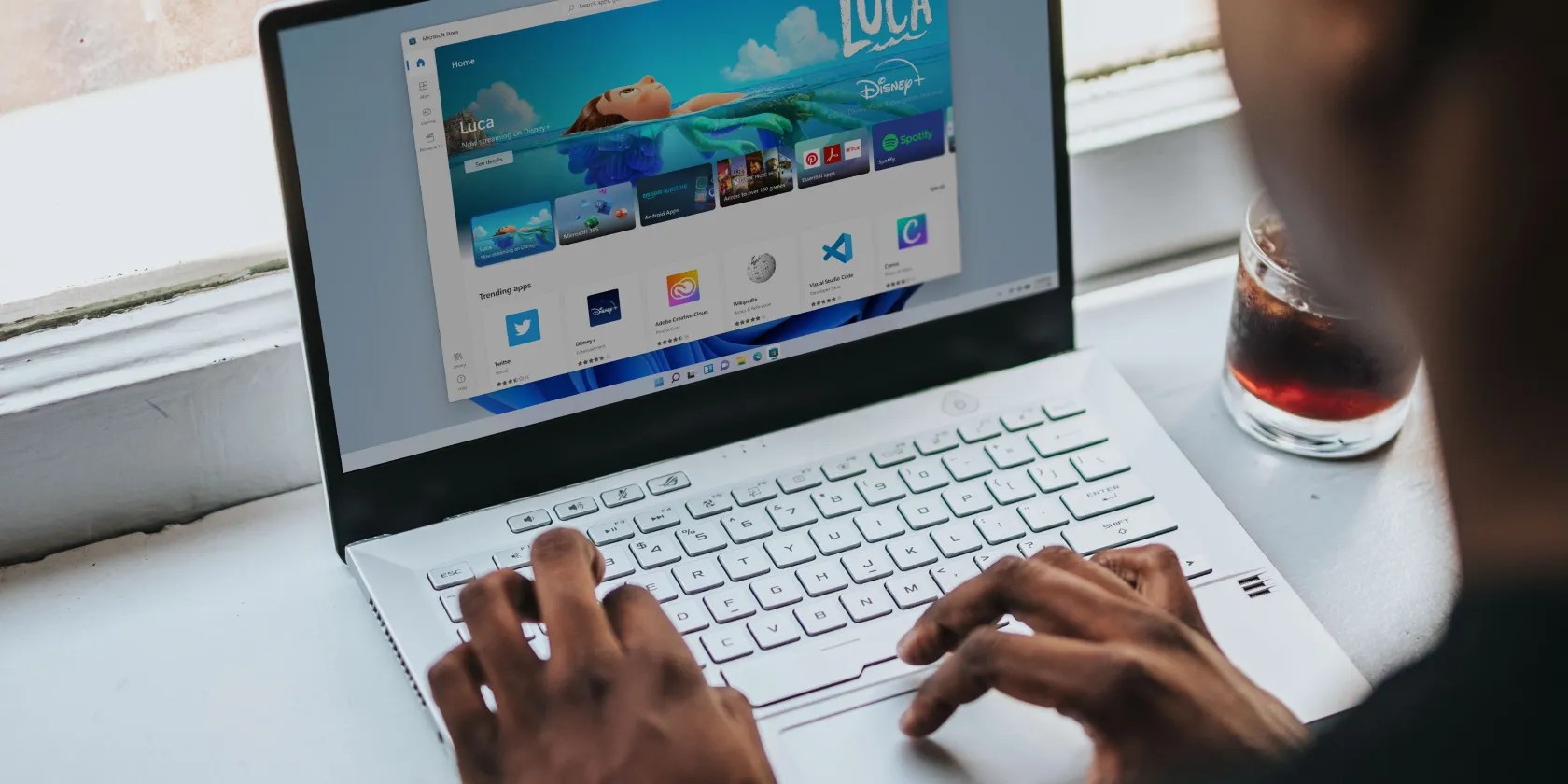
Note that to be able to download a theme successfully, you need to be using a Windows that’s activated. If it’s not, all the buttons and options will be simply grayed out.
If your Windows has already been activated, and you have followed the above steps carefully, the new theme on your PC will automatically install and display itself.

How to Tweak Your New Windows Theme
Installing a new theme isn’t where the customization ends, though. For example, after installing a new theme, head to the top of theThemessection on yourPersonalizationsettings menu. From there, you can tweak the background, color, sounds, and even the mouse cursor of your PC. So, there’s a lot of room for fiddling around with your new themes.
How to Adjust the Cursor Settings
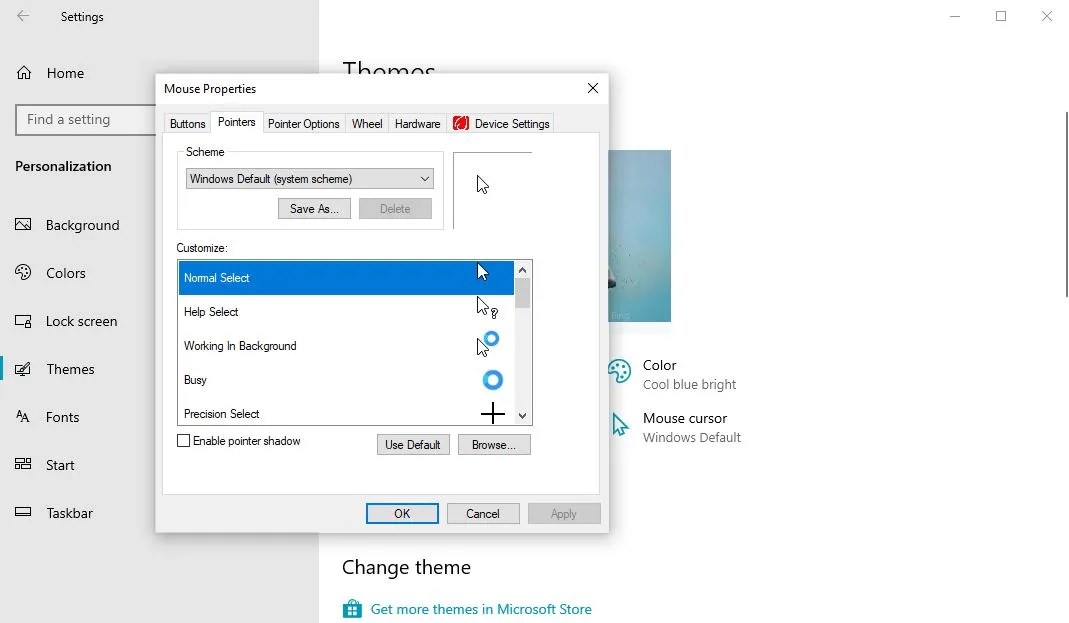
If you click onMouse cursor, theMouse Propertiesdialog box launch. You will see a host of tabs likeButtons,Pointers, and more, that will help you tweak your mouse settings on Windows. For example, click on thePointerstab to see the various ways you can tweak the appearance of your mouse.
How to Change the Theme Colors
Here’s how you can pick a new theme color on your Windows:
If you’re a fan of dark themes, why not try one ofthe best Windows dark themes?

How to Change Your Theme’s Font
Your theme font determines the quality of written texts over your dialog boxes and taskbar that appear on your screen. Here’s how you can choose one:
That’s it; you’ll have a new theme font from here on. Before you exit, though, just make sure you click on theSave themebutton to solidify the changes. And if you want, you can evenchange the default font on Windows.
Installing and Using a Theme on Your Windows PC
A new theme can give your old Windows PC a refreshing makeover. Hopefully, you enjoyed learning about the installation and the different ways to make use of the new themes on Windows computers.
But this isn’t the end by any means. There’s actually a whole world of Windows themes out there, which means there’s something for everyone.
A new Windows 10 theme gives your computer a fresh look for free. Here are the best Windows themes and how to apply them.
Not Linux, not Windows. Something better.
My foolproof plan is to use Windows 10 until 2030, with the latest security updates.
It saves me hours and keeps my sanity intact.
OneDrive is one of the best, but it has a catch.
Every squeak is your PC’s way of crying for help.
