Use sdm to Completely Configure Your Raspberry Pi OS Before You Install
Raspberry Pi OS is a Debian-derived operating system designed to help beginners and experts to get the most out of the Raspberry Pi hardware, while offering an easy-to-use desktop experience. Although you can do some basic customization before inserting your storage media into the Pi for the first time, by using the official Raspberry Pi Imager tool, you may wish that you could do more. With sdm, an SD card management tool, you can. Here’s how to do it.
Why Use sdm to Create Customized Disk Images for Your Raspberry Pi?
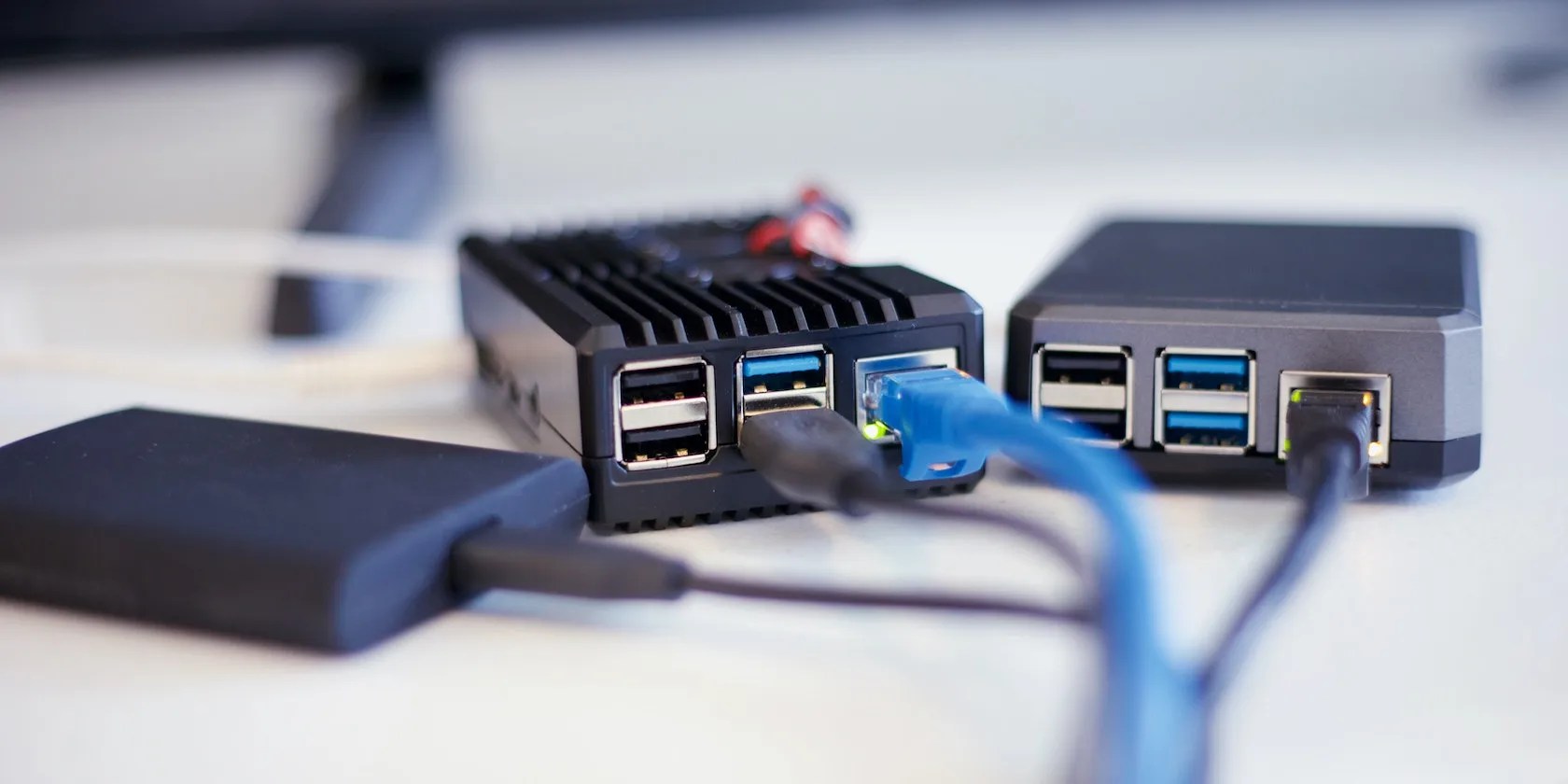
Raspberry Pis are cheap (when you can find them)single-board computers with top-notch components and an emphasis on learning and DIY software and electronics projects. They’re perfect for school computer labs and for deploying as standalone servers.
If you’re deploying multiple Raspberry Pi computers in a school or other organizations, you’ll find that after flashing a Raspberry Pi OS image to an SD card or SSD, you end up installing the same set of software packag over and over again. You’ll set up the same services, mount the same extra drives, and add the same aliases to the.bashrcfile. It can become very tedious, very quickly.

sdm is a tool which makes it easy to build consistent, ready-to-go storage media for the Raspberry Pi, containing the software you need and the configuration you choose.
How to Install and Use sdm
sdm installs on Linux via a script which you curl from its GitHub repository and pip to Bash:
You will also need a vanilla Raspberry Pi OS image to work from. Grab the most current ARM 64 Bullseye image from theofficial Raspberry Pi downloadsdirectory.

Raspberry Pi disk images come compressed as XZ archives. Extract the image with:
Now you’re ready to start customizing your Raspberry Pi OS image. Unlike the officialRaspberry Pi Imagertool, sdm doesn’t offer a friendly GUI option, so you’ll be spending a lot of time in the terminal. The first thing you want to do is verify sdm is able to mount the ISO and start a chroot:

If successful, sdm will start a chroot, and change your terminal background to gray, the terminal font color to blue, and the cursor to red. It’s not very easy on the eye, but it’s a reminder that you’re exploring the ISO in a chroot, rather than on your host system.
Once you’ve had a look around, exit the chroot with:

Your flotilla of Pis will need to connect to the network. This easiest way to do this is to create a newwpa_supplicant.conffile in your working directory.
In it, paste the following, making sure to substitute your own network and country details into the relevant fields:
Save and exit nano withCtrl+OthenCtrl+X.
If you plan to pre-install multiple additional packages on your Raspberry Pi ISO, you may want to extend the image to give yourself more space. You can use theextendswitch for this.
…will give you an extra 2GB to play with. You can adjust this figure to your own requirements.
Install Extra Packages on Your Raspberry Pi ISO With sdm
Having apps already installed and accessible for the end user is really the point of sdm. you could manage what apps will be pre-installed on the ISO with thecustomizeswitch, and a text file listing the apps you want to install.
In this file, type out the names of all the apps you want to available on first boot. These can either be space separated names, or one per line. For instance:
If you’re short of inspiration, check out our excellentcurated list of great apps to install on Raspberry Pi. When you’re happy, save and exit nano withCtrl+OthenCtrl+X.
Committing Your Customization to the Raspberry Pi ISO
The next command will copy your keymap, locale, timezone, and Wi-Fi country settings from the system on which it’s running; copy the wpa_supplicant.conf file you just configured; enable SSH on the Pi; prompt for a new password; and update and upgrade the system.
Appending it with:
…will install the apps you specified in yourapplistfile.
This process can take several minutes, but will keep you informed of progress throughout.
Before you run the command, there are additional switches you can use to configure the ISO further. Here are some of the most useful:
Burn Your Custom Raspberry Pi ISO to SD Card or SSD
sdm uses dd to “burn” your custom Raspberry Pi ISO to your storage medium of choice. Use theburnswitch to invoke it:
…where sdx is your SD card or SSD. If you’re not sure which drive is your storage medium, run:
…to get a list of devices.
When the process has finished, attach the device to your Pi, and boot your custom ISO!
Creating a Customized Raspberry Pi ISO Is Easy With sdm
Now that you’ve created a custom Raspberry Pi OS ISO, crafted to your own specifications, installing your perfect image on multiple machines is as easy as Pi, and the possibilities are endless. If you’ve discovered that OS customization is fun and productive, you may want to try your hand at creating customized spins for your favorite Ubuntu distro too.
Cubic, or Custom Ubuntu ISO Creator, lets you generate a personalized version of the Ubuntu or Linux Mint ISO that suits your needs.
Tor spoiled me forever.
One casual AI chat exposed how vulnerable I was.
Taming data is easier than it looks.
Now, I actually finish the books I start.
Freeing up vital memory on Windows only takes a moment, and your computer will feel much faster once you’re done.
