What Is Portrait Mode on an iPhone and How Do You Use It?
Everyone knows iPhones have some of the best smartphone cameras. Not only are the cameras easy to use, but you can capture professional quality images from your device, especially if you use Portrait Mode to take your images to the next level.
Curious about how Portrait Mode on works on the iPhone and what it does? We’ll explain everything you need to know below.

What Is Portrait Mode on iPhone?
Portrait mode creates a depth-of-field effect in your iPhone camera, which means that the subject of the image is focused and the background is slightly blurred. This is perfect for people wanting to take a professional-looking headshot, or just a selfie without focusing on what’s in the background.
Portrait Mode on the iPhone also has several different lighting effects, so you can find what lighting works best for you. Some of the effects even remove the background entirely.
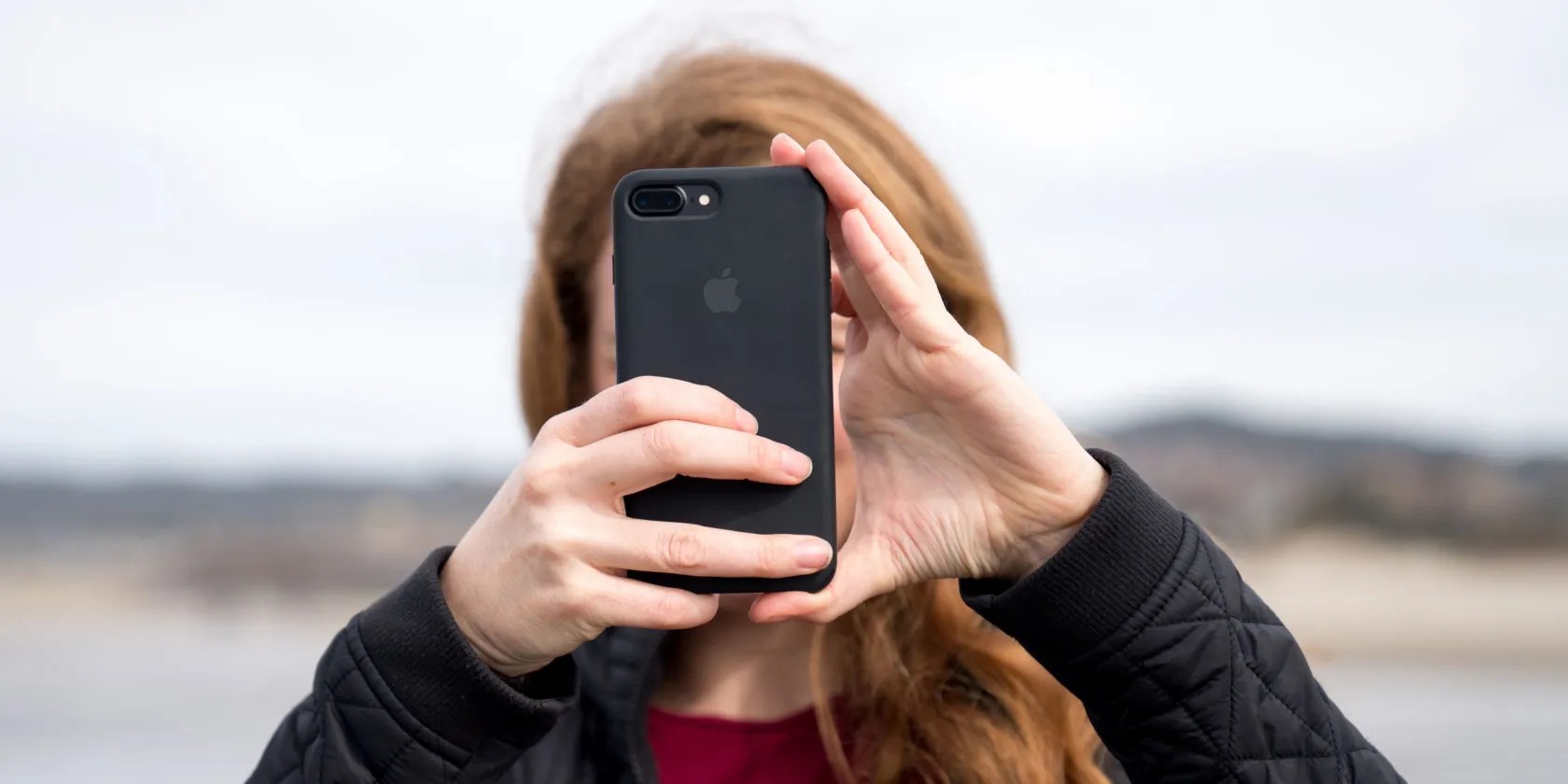
Portrait Mode is available on the iPhone SE, the iPhone 7 Plus, the iPhone 8 Plus, the iPhone X, and later. If you want to take a selfie in Portrait Mode, you need to have the iPhone X or later.
For those who have a Mac, you may also use Portrait Mode toblur the background in FaceTime and video calls.

How to Use Portrait Mode on an iPhone
To use Portrait Mode, first head to theCameraapp. Once here, swipe until you seePortrait Mode. Once in Portrait Mode, you can choose from the different lighting effects.
Some effects take a few seconds to get ready. While you’re focusing your camera, the effect name will turn yellow when it’s ready to use. Portrait Mode will also let you know if your phone is too close or too far from the subject.

Once it’s yellow, and you’re in range, just take your picture and enjoy. After you take a picture, you can still edit the photo as you would with any other photo on your iPhone.
What Effects Does Portrait Mode Have?
Portrait Mode has a variety of effects that help you take better pictures:
Newer iPhones also have High-Key Light Mono, which will place your subject on an all-white background.iPhones also have other camera modeswhich can help you take great pictures.

How to Remove or Change Portrait Mode Effects
While Portrait Mode effects are fun to play with, and look great, you might prefer a photo without them. Thankfully, you can remove Portrait Mode effects and just have a regular photo. You can also experiment with other effects without having to take a new photo, which is helpful when learning how to use Portrait Mode.
To edit or remove an effect, just open up thePhotosapp and tapEditat the bottom of the screen. Here, you will see the Portrait Mode lighting and be able to change it. To remove it, just tap the yellowPortraiticon to toggle Portrait Mode on and off.
Who Is Portrait Mode For?
While Portrait Mode has many great effects, some users might want to know who Portrait Mode is made for. For starters, Portrait Mode can help anyone take a great headshot or professional photo. This means you won’t need to get one taken elsewhere, which takes time and money.
Portrait Mode is also great for social media profile pictures. After all, Portrait Mode is designed to highlight you and remove the background.
Portrait Mode is also great for those who want to just take photos of themselves or others, as long as the background isn’t important. No matter what you decide to use Portrait Mode for, knowing how to use it makes things much easier.
We’ll show you how to use Apple’s impressive Portrait Mode with any third-party apps or webcams on your Mac.
Obsidian finally feels complete.
Revolutionize your driving experience with these game-changing CarPlay additions.
Your phone is a better editor than you give it credit for.
You’re not getting the most out of what you pay for iCloud+.
My foolproof plan is to use Windows 10 until 2030, with the latest security updates.
